

LOGIN TO MICROSOFT 365
Logging in to Microsoft 365 (Office 365) and Teams from Home
What you need
- A device (laptop/PC, iPad/tablet, or phone)
- Internet connection (Wi-Fi or mobile data)
- Your school email address and password
(Example: astudent@theacademy.me)
Microsoft 365 (Word, EXCEL, PowerPoint, OneDrive)
- Open Chrome or Edge.
- Go to office.com
- Click Sign in.
- Enter your school email and click Next.
If your correct email address has been entered the background picture will change to the AVA logo (example below):
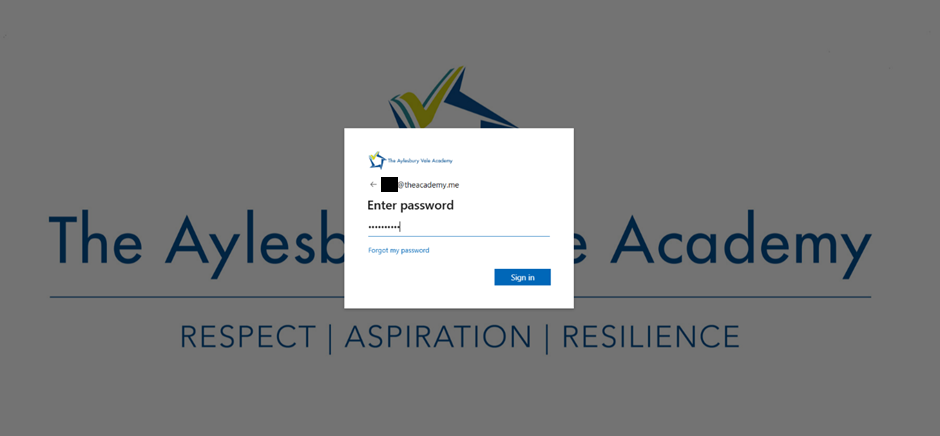
- Enter your password and click Sign in.
- You’ll see your Microsoft 365 home page. Click:
- Word / PowerPoint / Excel for work
- OneDrive to find files
Microsoft Teams in the browser
- Go to teams.microsoft.com
- Sign in with your school email and password
- Choose your class team (or click Calendar for lessons)
If you see “Stay signed in?”
- If it’s your own device, you can tap Yes.
- If it’s a shared device, tap No.
Common problems (quick fixes)
“Incorrect password”
- Make sure Caps Lock is off.
- Try typing the password in Notepad first to check it’s right.
- If you’ve forgotten it, you’ll need a password reset from school.
It keeps asking you to sign in
- Close the browser completely and try again.
- Clear your browser cache, or try InPrivate/Incognito mode.
Teams won’t load properly
- Try Chrome or Edge (not Safari/old browsers).
- Restart the device.
- Try the Teams app instead of the browser.
You can’t find your class/team
- Check you’re signed in with the correct school account (not a personal Microsoft account).
- Ask your teacher if you’ve been added to the team.
Staying safe online
- Never share your password with anyone (including friends).
- Always log out if you’re using a shared device.